


Deploy Gatsby with DeployHQ: A Step-by-Step Guide
DeployHQ is an automated deployment platform that connects your Git repository to your hosting infrastructure. When you push changes to your Gatsby site, DeployHQ handles the build process, transfers the generated static files to your server, and keeps your live site up to date — without manual intervention.
Gatsby is a React-based static site generator that compiles your source files into optimised static HTML, CSS, and JavaScript. Because the output is fully static (unless you are using server-side rendering or deferred static generation), it can be hosted on any standard web server, object storage bucket, or CDN-backed service. DeployHQ fits naturally into this workflow: it runs your build, caches dependencies and Gatsby's internal build artefacts between deployments, and transfers only the files that have changed to your server.
Deploying with DeployHQ
Create a project
The first step is to create a new project in DeployHQ and connect it to your Gatsby repository.
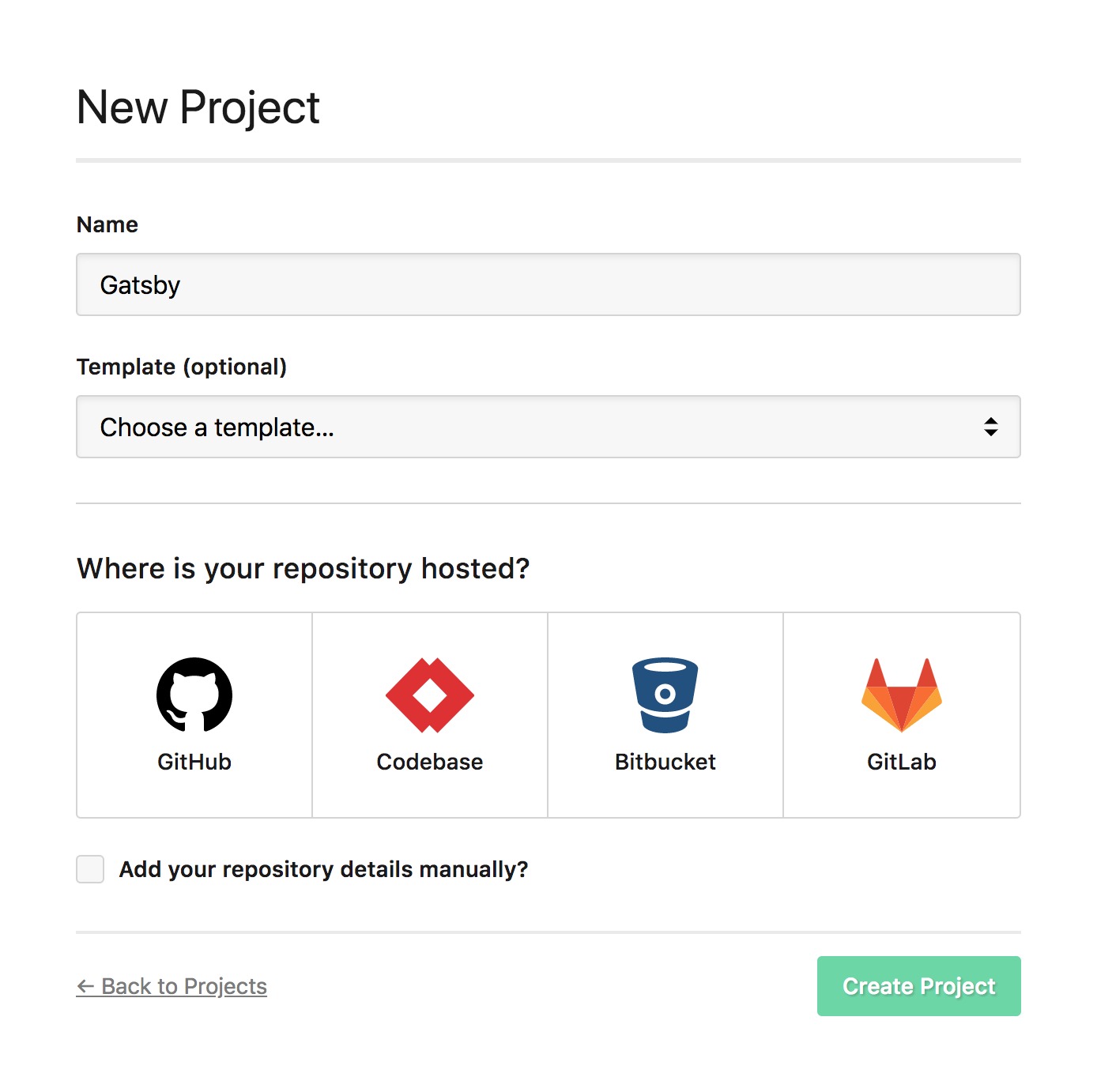
Log in to your DeployHQ account and click New Project. Give the project a name, then choose your source control provider — GitHub, GitLab, Bitbucket, or any self-hosted Git service. Select the repository containing your Gatsby site and choose the branch you want to deploy from (typically main or master).
If you need help connecting your repository, see (Article: #7).
Once the project is created, DeployHQ will show you the project dashboard where you can configure servers, build commands, and deployment settings.
Full details on project creation are available at our support page.
Configure a server
Next, add the server or hosting target that DeployHQ will deploy your built site to. Click New Server from the project dashboard and choose the connection type that matches your infrastructure:
- FTP — (Article: #31)
- FTPS — (Article: #33)
- SSH/SFTP — (Article: #29)
- Amazon S3 — (Article: #35)
- Rackspace Cloud Files — (Article: #37)
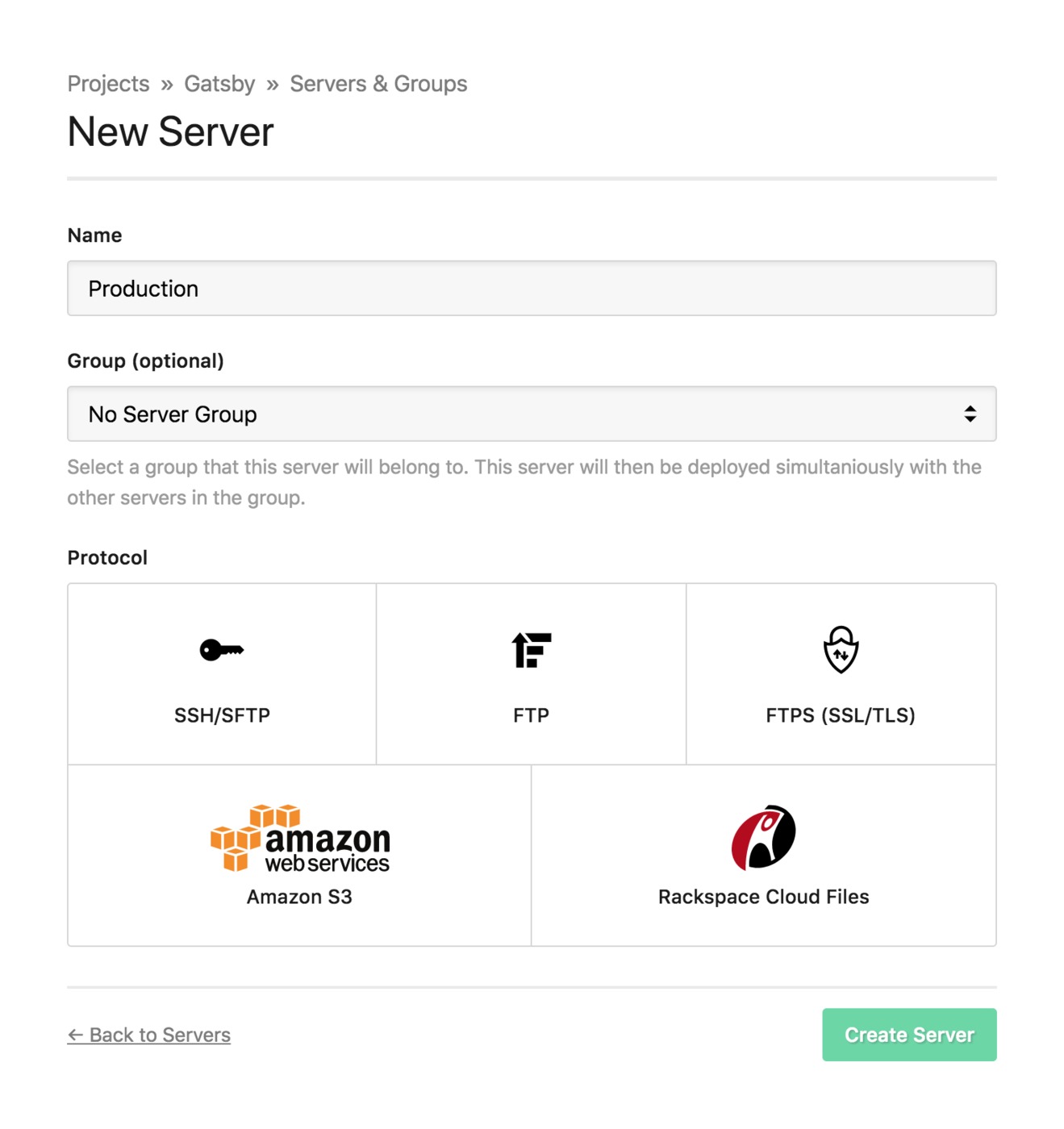
Enter the connection credentials for your server and set the Deployment Path to the directory on your server where the site files should be uploaded. This is typically your web root, such as /var/www/html or /public_html.
If you encounter problems establishing a connection, (Article: #27) covers the most common causes and how to resolve them.
Build pipeline
DeployHQ can run your Gatsby build automatically before transferring files. This means you do not need to commit your built output to the repository — DeployHQ compiles the site fresh on every deployment.
In your project settings, navigate to Build Pipeline and add the following build commands:
Install dependencies:
npm install
Build command:
npm run build
This runs gatsby build as defined in your package.json. Gatsby will compile your React components, process images, generate static HTML for every page, and write everything to the public directory.
Node version: Gatsby 5 requires Node 18 or later. Use DeployHQ's build environment settings to specify the Node version your project needs. Pinning the version here ensures your build environment matches your local development setup and prevents unexpected failures when the default Node version changes.
Out-of-memory errors: Gatsby builds can be memory-intensive, particularly on large sites with many pages, images, or complex GraphQL queries. If your builds fail with an out-of-memory error, prefix the build command with a Node memory flag:
NODE_OPTIONS=--max-old-space-size=4096 npm run build
This increases the memory available to Node during the build. Adjust the value (in megabytes) based on your build environment's available RAM.
Build caching
Caching is one of the most impactful settings for Gatsby deployments. Gatsby maintains an internal build cache in the .cache directory that stores compiled components, processed images, and data layer results. When this cache is preserved between deployments, Gatsby can perform incremental builds — only reprocessing pages and assets that have actually changed. On large sites, this can reduce build times from several minutes to under a minute.
In the build settings, add the following cache paths:
node_modules/**— avoids downloading and installing npm packages on every deployment.cache/**— preserves Gatsby's internal build cache, enabling incremental builds
Both are worth caching for different reasons. node_modules/** saves installation time, while .cache/** is the more impactful of the two for reducing actual build duration.
Deployment subdirectory
Gatsby writes all build output to the public directory. You want to deploy only this directory — not your source files, configuration, or node_modules.
In your server configuration, set the Deployment Subdirectory to:
public
With this set, DeployHQ will only transfer the contents of public to your server, keeping your deployment clean and your server free of source files.
Environment variables
Gatsby uses .env.development and .env.production files to manage environment-specific configuration. Variables prefixed with GATSBY_ are embedded into the client-side JavaScript bundle at build time and are accessible in your React components via process.env.GATSBY_VARIABLE_NAME. Variables without this prefix are available only during the build process itself.
Because .env files typically contain sensitive values, they are usually excluded from version control. DeployHQ's Config Files feature lets you define the contents of these files as part of your project configuration. Before the build runs, DeployHQ writes the file to the expected location so Gatsby picks it up correctly.
To set this up, go to your project's Config Files section and create an entry for .env.production with the appropriate key-value pairs for your production environment.
Deploy
With your build pipeline configured, your server connected, and your deployment subdirectory set, you are ready to deploy.
Trigger a deployment manually from the DeployHQ dashboard, or push a commit to your configured branch — DeployHQ will detect the change and start the deployment automatically. You can watch the build log in real time to see Gatsby compile your site and DeployHQ transfer the output files.
Once the deployment completes, your Gatsby site is live. Because Gatsby produces fully static output by default, no server-side runtime is required — your web server simply serves the HTML, CSS, and JavaScript files that DeployHQ has transferred.
For more deployment guides covering other frameworks and static site generators, visit our guides library.