AI coding assistants have fundamentally changed how we build and deploy web applications. But here's the reality most developers discover within the first week: these assistants are only as powerful as the tools and context you give them. That's where the Model Context Protocol (MCP) comes in.
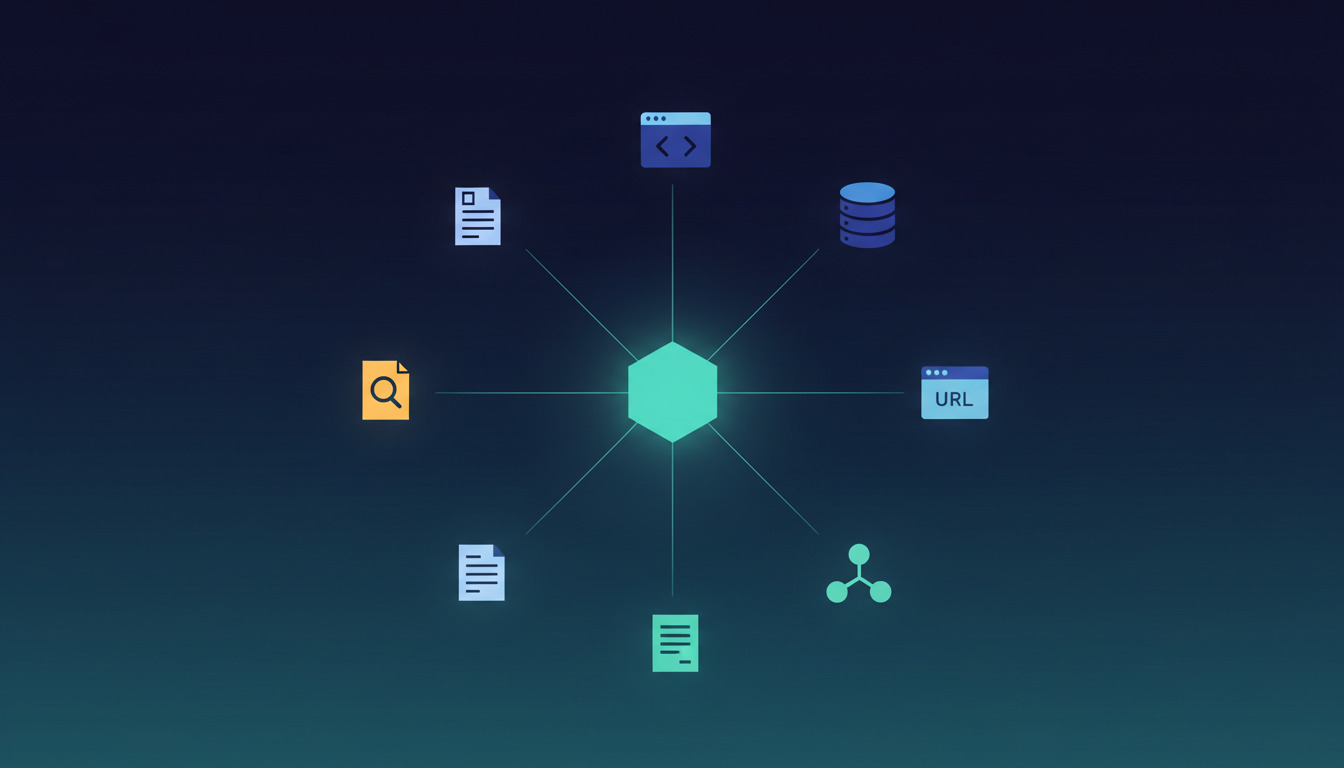
MCP is an open standard from Anthropic that lets AI models like Claude connect to external tools, data sources, and services through a standardised interface. Think of it as a universal adapter that allows your AI assistant to actually do things — from managing your GitHub repositories to querying databases, automating browser tasks, and triggering automated Git deployments.
The MCP ecosystem has exploded — there are now thousands of servers available, and the protocol itself has matured significantly since its initial release. We've previously covered how MCP fits into AI-integrated DevOps tools and when to choose CLIs over MCP servers for coding agents. This post is the must-have list: the MCP servers we consider genuinely essential for web developers, freelancers, and agencies — with practical, working setup instructions for every major AI coding tool.
These servers work with Claude Code, Cursor, Windsurf, Claude Desktop, and most other AI tools that support MCP.
Quick Comparison: Must-Have MCP Servers at a Glance
| MCP Server | Category | Best For | Claude Code | Cursor | Windsurf | Setup | Cost |
|---|---|---|---|---|---|---|---|
| GitHub (remote OAuth) | Source Control | PR reviews, issue triage, repo management | Yes | Yes | Yes | Easy | Free |
| Context7 | Documentation | Accurate, version-specific code generation | Yes | Yes | Yes | Easy | Free |
| Filesystem | File Access | Local project management, log searching | Yes | Yes | Yes | Easy | Free |
| Playwright | Browser Automation | Screenshots, form testing, scraping | Yes | Yes | Yes | Easy | Free |
| PostgreSQL (DBHub) | Database | Schema exploration, SQL queries, debugging | Yes | Yes | Yes | Moderate | Free |
| Supabase | Database (hosted) | Supabase-hosted Postgres, project-scoped tooling | Yes | Yes | Yes | Easy | Free tier |
| Brave Search | Web Search | Real-time research, error lookups, fact-checking | Yes | Yes | Yes | Easy | Free tier |
| DeployHQ | Deployment | Deployment triggers, rollbacks, server management | Yes | Yes | Yes | Moderate | Free with account |
What Makes a Great MCP Server?
Before we get into specific recommendations, here's what separates a must-have MCP server from the rest:
- Trusted and maintained — Comes from a verified source with active development and security updates. Several once-popular MCP packages have been deprecated or moved to remote endpoints in the past year, so check the source before you install.
- Real productivity gains — Solves actual problems in your workflow, not just novelty features
- Easy integration — Works seamlessly with Claude Code, Cursor, Windsurf, and Claude Desktop
- Clear documentation — You can get up and running quickly without extensive troubleshooting
With those criteria in mind, here are the MCP servers every web developer should know.
1. GitHub MCP Server — Repository Management Made Easy
What it is
The official GitHub MCP server allows your AI assistant to interact directly with GitHub repositories. It can read issues, review pull requests, check commit history, manage branches, and even create new files — all through natural language commands.
In 2025, GitHub moved away from the old npm-based @modelcontextprotocol/server-github (now deprecated) and now ships an officially hosted remote MCP server at https://api.githubcopilot.com/mcp/ plus a Docker image (ghcr.io/github/github-mcp-server) for tools that don't yet support remote MCP. Use the remote endpoint where you can — OAuth replaces the personal-access-token-in-a-config-file pattern most tutorials still recommend.
Why you need it
GitHub is at the centre of most development workflows. Instead of context-switching between your terminal, browser, and IDE, you can ask your AI assistant to handle repository tasks directly. Need to check if that bug is already documented? Ask Claude. Want to review the changes in a PR before merging?
For teams using DeployHQ, this pairs especially well with automatic deployments — review and merge PRs through your AI assistant, and DeployHQ handles the rest by deploying from GitHub to your servers automatically.
Setup for Claude Code (remote)
claude mcp add --transport http github https://api.githubcopilot.com/mcp/
You'll be prompted to authenticate via OAuth on first use.
Setup for Cursor & Windsurf (local Docker)
For editors that don't yet support remote MCP, run the official container locally:
{
  "mcpServers": {
    "github": {
      "command": "docker",
      "args": [
        "run", "-i", "--rm",
        "-e", "GITHUB_PERSONAL_ACCESS_TOKEN",
        "ghcr.io/github/github-mcp-server"
      ],
      "env": {
        "GITHUB_PERSONAL_ACCESS_TOKEN": "ghp_your_token_here"
      }
    }
  }
}
For Claude Desktop, the same JSON goes into claude_desktop_config.json:
- macOS:
~/Library/Application Support/Claude/claude_desktop_config.json - Windows:
%APPDATA%\Claude\claude_desktop_config.json
Practical example
Here's what a real workflow looks like in Claude Code with the GitHub MCP server:
Prompt: Check the deployhq/app repo for any open issues about deployment failures, summarise them, and draft a fix for the most recent one.
What happens: Claude reads the issue list, identifies deployment-related issues, pulls the relevant code, and proposes a targeted fix — all without leaving the terminal.
More example prompts
Show me all open issues in the deployhq/app repository
What changed in the last 5 commits on the main branch?
Create a new issue titled 'Update deployment documentation' with a description
2. Context7 — Up-to-Date Documentation for AI Coding
What it is
Context7 is specifically designed to make AI assistants better at writing code. It injects up-to-date, version-specific documentation and code examples directly into the prompt context, ensuring your AI uses accurate information from actual libraries rather than potentially outdated training data. If you want the deeper walkthrough — Cursor, Claude Code, and VS Code setups, plus how to use use context7 inline — see our complete Context7 setup guide. And if you maintain your own library or product docs and want them surfaced the same way, serving markdown to AI coding assistants via llms.txt and content negotiation covers the publishing side.
Why you need it
We've all experienced the frustration of an AI assistant generating code with deprecated methods or incorrect syntax for the library version you're using. Context7 solves this by giving your AI real-time access to current documentation for thousands of libraries — React, Rails, Next.js, Laravel, Django, and everything in between.
In our experience, Context7 dramatically reduces the back-and-forth of correcting generated code. When you're working with a framework like Next.js 15 where the API surface changes between minor versions, having Context7 pull the exact docs for your version eliminates an entire category of errors.
Setup for Claude Code
claude mcp add context7 -- npx -y @upstash/context7-mcp@latest
Setup for Cursor & Windsurf
{
  "mcpServers": {
    "context7": {
      "command": "npx",
      "args": ["-y", "@upstash/context7-mcp@latest"]
    }
  }
}
Practical example
Prompt: Using Context7, show me how to set up Active Storage with S3 in Rails 8.0.
What happens: Instead of guessing based on training data, Claude fetches the current Rails 8.0 Active Storage docs and generates configuration code that matches the exact API — including any breaking changes from Rails 7.x.
More example prompts
What's the correct way to configure Tailwind CSS 4.0 with Vite?
Show me the current Next.js 15 API for server components
How do I set up authentication in Laravel 11?
3. Filesystem MCP Server — Local File Access for Your AI
What it is
The Filesystem MCP server gives your AI assistant controlled access to read, create, edit, and organise files on your local machine. You specify which directories it can access, maintaining security while enabling powerful file management capabilities.
Why you need it
Whether you're organising project files, searching through logs, or having Claude help refactor code across multiple files, local file access is fundamental. This server turns your AI assistant into a capable file manager that understands context and can make intelligent decisions about file operations.
This is particularly useful when working with build pipeline configuration files — you can have Claude read your deployment configs, suggest improvements, and update them in place.
Setup for Claude Code
claude mcp add filesystem -s user -- npx -y @modelcontextprotocol/server-filesystem ~/Projects ~/Documents ~/Desktop
Setup for Cursor & Windsurf
{
  "mcpServers": {
    "filesystem": {
      "command": "npx",
      "args": [
        "-y",
        "@modelcontextprotocol/server-filesystem",
        "/Users/yourname/Projects",
        "/Users/yourname/Documents"
      ]
    }
  }
}
Practical example
Prompt: Search all .yml files in my project for deprecated Docker Compose syntax and update them to the v2 format.
What happens: Claude scans your project directory, identifies outdated docker-compose.yml files, highlights the specific deprecated directives, and rewrites them using current syntax — with a summary of every change made.
More example prompts
Find all Ruby files in my project that reference the User model
Create a new directory structure for a Rails API project
Read the README and summarise the setup instructions
4. Playwright MCP Server — Browser Automation and Testing
What it is
Microsoft's @playwright/mcp is the modern replacement for the old Puppeteer MCP server (which was archived alongside several other reference implementations). It lets your AI assistant drive a real browser — Chromium, Firefox, or WebKit — to navigate sites, interact with page elements, take screenshots, generate PDFs, fill out forms, and run automated tests.
Why you need it
For web developers, the ability to automate browser tasks is invaluable. You can use it for scraping documentation, testing your deployed applications, generating visual regression screenshots, or automating repetitive web-based workflows. Particularly useful for agencies managing multiple client sites who need quick visual checks after deployments.
Setup for Claude Code
claude mcp add playwright -s user -- npx -y @playwright/mcp@latest
Setup for Cursor & Windsurf
{
  "mcpServers": {
    "playwright": {
      "command": "npx",
      "args": ["-y", "@playwright/mcp@latest"]
    }
  }
}
Practical example
Prompt: Navigate to our staging site at staging.example.com, take a screenshot of the homepage, check that the hero banner loads, and report any console errors.
What happens: Claude opens a headless browser, navigates to the URL, captures a full-page screenshot, inspects the DOM for the hero banner element, and collects any JavaScript errors from the console — giving you a deployment smoke test in seconds.
More example prompts
Fill out the contact form on example.com and submit it
Check if the login page loads correctly and capture any console errors
Take screenshots of our site at 320px, 768px, and 1440px widths
5. PostgreSQL/Database MCP Server — Direct Database Access
What it is
Database MCP servers (like Bytebase's DBHub) allow your AI assistant to connect directly to your databases. It can explore schemas, write and execute SQL queries, manage records, and help you understand your data structure.
Why you need it
Instead of writing SQL queries manually or switching to a database client, you can ask Claude to query your data in natural language. This is especially powerful for debugging, data exploration, and generating reports. The AI can understand your schema and write optimised queries based on what you're trying to accomplish.
If you haven't picked a database yet, our breakdown of SQLite vs PostgreSQL vs MySQL walks through the tradeoffs for typical web-app workloads.
Setup for Claude Code
claude mcp add db --transport stdio -- npx -y @bytebase/dbhub \
  --dsn "postgresql://user:password@localhost:5432/myapp_development"
Setup for Cursor & Windsurf
{
  "mcpServers": {
    "database": {
      "command": "npx",
      "args": [
        "-y",
        "@bytebase/dbhub",
        "--dsn",
        "postgresql://user:password@localhost:5432/myapp_development"
      ]
    }
  }
}
Connecting to MySQL instead of Postgres has its own set of traps — see connecting Claude Code to MySQL for the auth-plugin and socket issues that quietly break the connection. For local prototyping against a throwaway file, using Claude Code with SQLite is the lowest-risk starting point.
Practical example
Prompt: Show me which users signed up in the last 7 days but haven't completed a deployment. Include their email and the date they signed up, sorted by most recent.
What happens: Claude inspects the database schema, identifies the relevant tables and relationships, constructs a JOIN query with proper date filtering, executes it, and presents the results in a readable table — including the exact SQL for your records.
More example prompts
Show me the schema for the deployments table
What are the most common error types in the deployment_logs table?
Generate a monthly report of deployment success rates by project
For a hands-on walkthrough of connecting Claude Code to your database through DBHub, including schema inspection and query generation, check out our step-by-step guide to generating SQL queries with Claude Code and DBHub.
If your Postgres is hosted on Supabase
DBHub connects to any Postgres over a DSN, but if your database lives on Supabase there is a first-party alternative that exposes more than SQL. The Supabase MCP server is hosted — there is no package to install and no connection string to paste, which makes it the quickest database server on this list to get running.
Setup for Claude Code
claude mcp add --scope project --transport http supabase "https://mcp.supabase.com/mcp"
Setup for Cursor & Windsurf
{
  "mcpServers": {
    "supabase": {
      "type": "http",
      "url": "https://mcp.supabase.com/mcp"
    }
  }
}
Configuration happens in the URL rather than through CLI flags. Append ?read_only=true to execute every query as a read-only Postgres user, ?project_ref=<id> to scope the server to a single project (which also disables account-level tools), and ?features=<groups> to enable only specific tool groups. They stack: ?project_ref=abc123&read_only=true.
Authentication uses dynamic client registration, so no personal access token is needed for local use — you approve the connection in your browser. CI environments are the exception, passing a token through an Authorization: Bearer header.
Supabase's own guidance is worth following before you point this at anything real: scope the server to one project, enable read-only mode, restrict the feature groups, and treat prompt injection as a live risk rather than a theoretical one. Our walkthrough of read-only database roles and MCP guardrails for AI agents covers the same defence in depth at the Postgres level.
6. Brave Search MCP Server — Web Search for Your AI
What it is
The Brave Search MCP server gives your AI assistant the ability to search the web in real time. It uses Brave's privacy-focused search API to find current information, documentation, and answers without relying on training data alone. Brave now publishes the official server themselves at @brave/brave-search-mcp-server — earlier community packages and the deprecated @anthropic-ai/mcp-server-brave-search reference are no longer the right install path.
Why you need it
AI assistants are limited by their training data cutoff. When you need current information — the latest security advisory, a new library release, today's deployment best practices — your AI can't answer from memory alone. Brave Search bridges this gap, letting your assistant look up live information and incorporate it into its responses.
This is especially valuable for:
- Researching errors: Searching for specific error messages and finding recent solutions
- Staying current: Looking up the latest versions, changelogs, and migration guides
- Competitive research: Finding documentation and examples from other projects
- Fact-checking: Verifying that generated code uses current APIs and patterns
Setup for Claude Code
First, get a free API key from Brave Search API.
claude mcp add brave-search -- env BRAVE_API_KEY=your_brave_api_key_here \
  npx -y @brave/brave-search-mcp-server
Setup for Cursor & Windsurf
{
  "mcpServers": {
    "brave-search": {
      "command": "npx",
      "args": ["-y", "@brave/brave-search-mcp-server"],
      "env": {
        "BRAVE_API_KEY": "your_brave_api_key_here"
      }
    }
  }
}
Practical example
Prompt: Search for any critical security advisories for Express.js published in the last 30 days, and check if our package.json has any affected versions.
What happens: Claude searches Brave for recent Express.js CVEs, cross-references the affected versions with your project's package.json, and flags any vulnerabilities — complete with remediation steps and links to the official advisories.
More example prompts
Find the official migration guide for upgrading from React 18 to React 19
Look up how to fix 'ECDH not supported' errors in recent OpenSSL versions
Search for the latest Node.js LTS release and security patches
7. DeployHQ MCP Server — AI-Powered Deployment Automation
What it is
The DeployHQ MCP server connects your AI coding assistant directly to your DeployHQ account, enabling deployment management through natural language. You can trigger deployments, check server status, review deployment history, and perform rollbacks — all from within Claude Code, Cursor, or Windsurf.
Why you need it
Deployment is the final step of every development cycle, and it's often the most context-switch-heavy. You finish coding, push to Git, open the DeployHQ dashboard, select the right server, trigger the deployment, and wait. With the DeployHQ MCP server, that entire flow collapses into a single prompt. It's particularly powerful when combined with the GitHub MCP server — review a PR, merge it, and deploy to staging without ever leaving your editor. For a worked-through example of this pattern, see how we prompt our way to deployment with Claude Code and DeployHQ.
Setup for Claude Code
claude mcp add deployhq -- npx -y deployhq-mcp-server
Set your API credentials:
export DEPLOYHQ_API_KEY=your_api_key_here
export DEPLOYHQ_ACCOUNT=your_account_slug
Setup for Cursor & Windsurf
{
  "mcpServers": {
    "deployhq": {
      "command": "npx",
      "args": ["-y", "deployhq-mcp-server"],
      "env": {
        "DEPLOYHQ_API_KEY": "your_api_key_here",
        "DEPLOYHQ_ACCOUNT": "your_account_slug"
      }
    }
  }
}
Practical example
Prompt: Deploy the main branch to the staging server for the client-portal project, and show me the deployment log when it's done.
What happens: Claude authenticates with your DeployHQ account, identifies the correct project and server, triggers the deployment, and streams the log output back — letting you spot any build or deployment errors immediately.
More example prompts
Show me the deployment history for the production server
Roll back the last deployment on the client-portal staging server
What's the current deployment status across all my projects?
Deploy the hotfix branch and notify me if the build pipeline fails
You can start on the free DeployHQ plan to try it out.
Getting Started: Prerequisites
Before installing any MCP servers, make sure you have:
- Node.js installed (LTS version recommended) — Download here
- Claude Code, Cursor, Windsurf, or Claude Desktop installed
- npx available in your PATH (comes with Node.js)
- Docker if you want to run the official GitHub MCP server locally
To verify your installation:
node --version
npx --version
After adding servers to your configuration, restart your AI tool for the changes to take effect.
Tips for Claude Code users
Claude Code makes MCP server management especially straightforward. You can list all configured servers, add new ones, and remove them directly from the CLI:
# List all configured MCP servers
claude mcp list

# Add a server with user scope (available across all projects)
claude mcp add server-name -s user -- npx -y @package/name

# Remove a server
claude mcp remove server-name
For a deeper dive into using Claude Code effectively for development, including terminal workflows and Git integration, see our Claude Code Git guide covering commands, commits and attribution. For a single-page command reference covering slash commands, hooks, MCP setup, and CI patterns, see our Claude Code cheatsheet. If you're still picking an AI coding assistant, our Claude Code vs Codex CLI vs Gemini CLI comparison walks through the differences for deployment workflows.
Security Considerations
MCP servers are powerful tools that can access sensitive data and systems. Keep these best practices in mind:
- Limit file access — Only grant access to directories you actually need
- Use read-only database connections when possible
- Rotate API tokens regularly and never commit them to version control
- Prefer remote/OAuth servers where they exist (like the official GitHub MCP) — they avoid storing long-lived tokens in plaintext config files
- Review server sources — Stick to official and well-maintained servers from verified publishers
- Be cautious with network access — Understand what external connections a server might make
- Audit permissions — Review what each MCP server can do before granting access, especially for servers that can write or execute code
For teams managing production deployments, using zero downtime deployments alongside MCP automation helps ensure that AI-triggered deploys don't cause service interruptions.
Building Your MCP Stack: Where to Start
The MCP servers covered here represent the core toolkit for web developers. But the real power comes from how you combine them. A typical workflow might look like this:
- GitHub MCP reviews a pull request and identifies potential issues
- Context7 pulls the latest framework docs to validate the implementation
- Brave Search checks for known issues with a dependency update
- Playwright runs a visual smoke test on the staging site
- DeployHQ MCP triggers a deployment to production once everything checks out
Start small — pick one or two servers that address your biggest pain points, get comfortable with them, and expand from there. Each server you add multiplies the capabilities of your AI assistant.
The developers who invest in building their MCP stack now will have a significant productivity advantage as AI-assisted development becomes the standard. Whether you're a solo freelancer or part of an agency managing dozens of client projects, these tools pay for themselves in the first week.
Resources
- Model Context Protocol Documentation
- Official MCP Servers Repository
- DeployHQ — Automated Git Deployment Platform
Ready to streamline your deployment workflow alongside your new MCP stack? Start your free DeployHQ trial and connect your Git repositories to automatic server deployments in minutes.
Have questions about MCP servers or deployment automation? Reach out at support@deployhq.com or find us on X (@deployhq).